
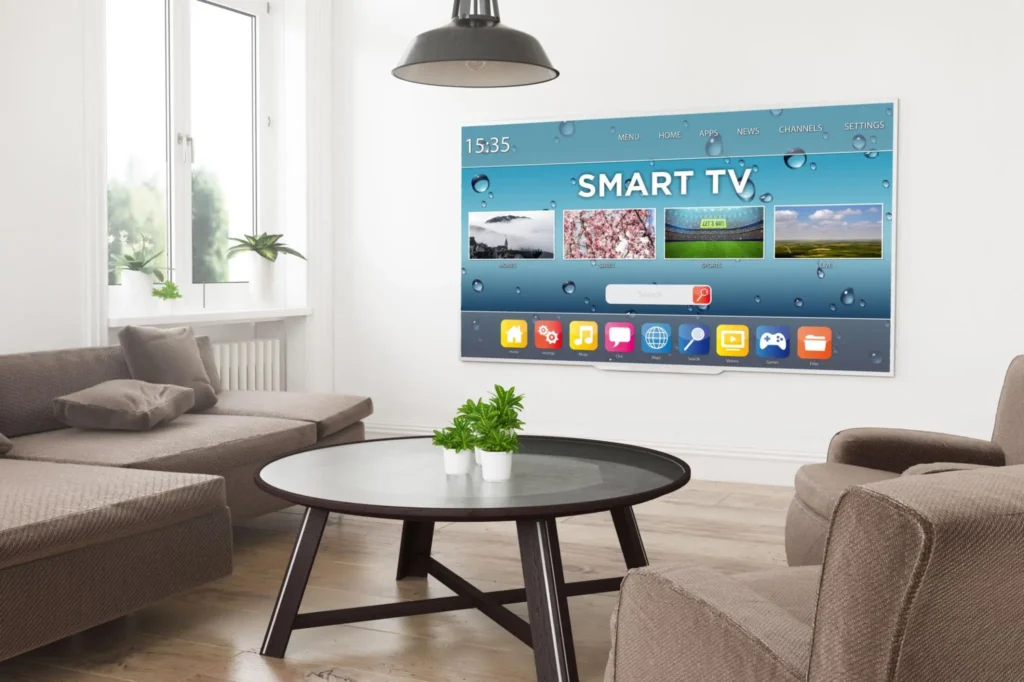
The modern smart TV has completely revolutionized how we consume media. Gone are the days of dealing with a tangled web of auxiliary cords, bulky cable boxes, and multiple remotes just to watch your favorite evening show. Today, a single sleek panel mounted on your wall serves as a gateway to virtually every movie, television series, live sporting event, and documentary ever created.
However, as these television sets have evolved from simple display monitors into highly sophisticated, internet-connected computers, they have also inherited the complexities of modern computing. It is no longer just about plugging in a power cable and adjusting an antenna. To get a pristine, uninterrupted, ultra-high-definition picture, you have to understand how your television interacts with your home network, how its internal operating system manages temporary data, and how to configure its settings for peak performance.
If you have ever had a movie night ruined by the dreaded, spinning buffering wheel, struggled with apps that suddenly crash back to the home screen, or felt overwhelmed by the dizzying array of picture and audio configurations, this comprehensive guide is for you. Whether you are unboxing a brand-new 4K OLED display or trying to breathe new life into an aging living room television, this manual will walk you through every aspect of smart TV streaming optimization.
1. Understanding Smart TV Basics
Before diving into advanced network configurations and troubleshooting steps, it is essential to understand exactly what is happening under the hood of your television. At its core, a smart TV is a television set integrated with an internet connection and a dedicated operating system (OS). This setup allows you to stream content directly from online services without needing an external device like a Roku, Apple TV, or Amazon Fire Stick.
The Major Smart TV Operating Systems
Just as smartphones are divided primarily between Apple’s iOS and Google’s Android, the smart TV landscape is divided among several distinct operating platforms. Every manufacturer chooses an operating system that dictates the user interface, app availability, and overall performance characteristics of their TVs.
- Android TV / Google TV (Sony, Hisense, TCL): Developed by Google, this platform is incredibly powerful and offers the largest library of applications through the Google Play Store. Google TV is a modern, content-first skin built on top of Android TV that prioritizes personalized recommendations across all your streaming subscriptions. It features deep integration with Google Assistant for advanced voice control.
- webOS (LG): Known for its highly intuitive and responsive user interface, LG’s proprietary webOS utilizes a customizable launch bar at the bottom of the screen. It is widely praised for its smooth navigation, multitasking capabilities, and the “Magic Remote,” which allows you to control an on-screen cursor simply by pointing the remote at the TV.
- Tizen OS (Samsung): Samsung’s home-grown operating system is fast, visually clean, and highly integrated into Samsung’s SmartThings smart home ecosystem. Like webOS, it features a convenient horizontal navigation bar at the bottom of the screen, allowing you to switch between apps without completely obscuring the show you are currently watching.
- Roku TV (TCL, Hisense, RCA): Known for its absolute simplicity, Roku TV abandons flashy, resource-heavy animations in favor of a straightforward grid of apps. It is incredibly lightweight, making it exceptionally fast even on budget-friendly television models, and boasts near-universal app support.
- Fire TV Edition (Toshiba, Insignia): Amazon’s television operating system places Prime Video and live TV content front and center. It is an excellent choice for households deeply embedded in the Amazon Alexa ecosystem, offering robust voice search capabilities and smart home device control.
Hardware Components: CPU, GPU, and RAM
When shopping for a smartphone or laptop, you likely pay close attention to the processor speed and memory capacity. Yet, consumers rarely look at these specifications when buying a smart TV. This oversight is a mistake because streaming apps are software programs that require physical computing power to run smoothly.
- Central Processing Unit (CPU): The CPU acts as the brain of your smart TV. It executes the instructions of the operating system, handles user inputs from the remote, and coordinates data flow. A weak, dual-core processor in a budget television will result in sluggish menu navigation, delayed app launches, and slow response times. Higher-end models feature quad-core processors designed to handle heavy multi-tasking and instant app switching.
- Graphics Processing Unit (GPU): The GPU is responsible for rendering visual elements on your screen. It handles everything from user interface animations to the complex algorithms required to upscale lower-resolution content (like standard 1080p HD) into crisp 4K or 8K imagery.
- Random Access Memory (RAM): RAM provides temporary, high-speed storage for apps that are currently open or running in the background. If your TV has low RAM (common in older or cheaper models, which often have 1 GB or less), the operating system will constantly have to close background applications to free up memory. This results in apps having to reload entirely every single time you open them. Premium smart TVs generally feature 2 GB to 4 GB of RAM, ensuring instantaneous app launching and fluid navigation.
2. Preparing Your Device for Optimal Performance
Achieving an exceptional smart TV streaming experience begins the moment you unbox the machine. Correct initial physical setup and system configuration lay the groundwork for long-term reliability and visual brilliance.
Physical Placement and Environmental Factors
The physical environment surrounding your smart TV plays a surprising role in its operational efficiency and longevity.
- Ventilation and Heat Dissipation: Just like any computer, the internal processors of a smart TV generate significant heat during intensive tasks like decoding 4K HDR video streams. If you mount your television flush against a wall inside a tight, enclosed entertainment center without proper airflow, heat will build up rapidly. Prolonged exposure to high temperatures causes the processor to engage in thermal throttling—purposefully slowing down its clock speed to prevent permanent hardware damage. This slowdown manifests as sudden frame drops, stuttering video, or unexpected system reboots. Ensure there are at least two to three inches of open space around all sides of the TV for natural heat dissipation.
- Proximity to Your Router: If you intend to connect your television to your home network via Wi-Fi, physical distance and obstructions are your greatest enemies. Solid concrete walls, heavy metal studs, large mirrors, and even dense wooden furniture can severely degrade wireless signals. Ideally, your TV should have a clear, unobstructed line of sight to your router. If that is impossible, minimize the number of barriers between the two devices as much as humanly possible.
The First-Time Initialization Process
When you first power on your smart TV, you will be guided through an initial setup wizard. Pay careful attention to these steps rather than rushing through them to get to your content.
- Region and Time Zone Accuracy: Ensure your region and time zone are accurately configured. Many streaming applications utilize secure encryption protocols that rely on precise time synchronization between the TV and the streaming server. If your TV’s clock is inaccurate, apps like Netflix or Disney+ may throw ambiguous connectivity errors or refuse to launch entirely.
- Disabling Unnecessary Background Features: During setup, manufacturers will ask for permission to enable features like ACR (Automatic Content Recognition). ACR constantly analyzes the pixels on your screen to identify what you are watching, sending that data back to advertisers. This background process consumes valuable CPU cycles and network bandwidth. Disabling ACR and opting out of optional diagnostic tracking frees up system resources for your streaming apps.
Essential Initial Firmware and App Updates
The software pre-installed on your television at the factory is almost certainly outdated by the time it arrives in your home. Out-of-the-box software bugs are incredibly common.
Before installing a single streaming app, navigate to your TV’s system settings menu, locate the software update section, and check for available firmware updates. Allow the TV to download and install the latest system software, and let it reboot completely. Once the operating system is up to date, open the built-in app store (Google Play Store, LG Content Store, or Samsung Smart Hub) and update all pre-installed applications to their latest iterations.
3. Advanced Network Optimization Techniques
No matter how powerful your smart TV’s processor is or how beautiful its display panel looks, your streaming quality is fundamentally bottlenecked by the quality of your internet connection. Video streaming, particularly in 4K Ultra HD and Dolby Vision HDR, requires massive amounts of consistent data delivery.
Bandwidth Requirements: Understanding the Numbers
To understand why your stream might be stuttering, you must understand how much data your content actually demands. The Federal Communications Commission (FCC) and various streaming platforms outline specific minimum download speeds for different video resolutions:
| Video Resolution | Minimum Required Bandwidth | Recommended Stable Bandwidth |
|---|---|---|
| Standard Definition (SD – 480p) | 3 Mbps | 5 Mbps |
| High Definition (HD – 1080p) | 5 Mbps | 10 Mbps |
| Ultra High Definition (4K UHD) | 25 Mbps | 50 Mbps |
It is crucial to remember that these numbers represent the bandwidth available exclusively to the television. If you have a 50 Mbps home internet plan, and someone else in the house is downloading a large video game file or conducting a video conference call, the bandwidth left for your TV will plummet below the minimum threshold required for seamless 4K playback.
Wired vs. Wireless Connections: The Truth About Smart TV Ethernet Ports
The common consensus in networking is that a wired Ethernet connection is always superior to a wireless Wi-Fi connection. While this remains true for stability and latency, there is a massive catch when it comes to smart TVs that catches many tech-savvy users off guard.
Almost every single smart TV manufacturer on the market today—including premium brands like Sony, LG, and Samsung—saves money by installing outdated, legacy 10/100 Mbps Fast Ethernet ports instead of modern 1000 Mbps Gigabit Ethernet ports.
This means that if you plug a high-speed Cat6 Ethernet cable directly into your smart TV, your maximum speed will be hard-capped at exactly 100 Mbps. While 100 Mbps is technically enough for standard 4K streaming streams (which average 15–30 Mbps), high-bitrate content, such as uncompressed 4K Blu-ray rips or premium live IPTV streams, can feature bursts of data that spike well over 100 Mbps. These sudden spikes will cause immediate buffering on a wired connection.
Conversely, a modern 5 GHz Wi-Fi connection can easily achieve speeds between 200 Mbps and 500 Mbps, provided your router is nearby and free from interference.
The Rule of Thumb: If your TV is far away from your router or suffers from heavy wireless interference (causing dropped connections), use a wired Ethernet cable for rock-solid stability. If you have an excellent mesh router system or your TV is close to the access point, use a 5 GHz Wi-Fi connection to unlock maximum raw speeds.
Optimizing Your Wi-Fi Network
If you choose to use Wi-Fi, you must configure your router to deliver the best possible signal to your entertainment center.
- Split Your Wi-Fi Bands: Most modern routers are “dual-band,” meaning they broadcast both a 2.4 GHz and a 5 GHz wireless frequency. The 2.4 GHz band excels at transmitting data over long distances and through thick walls, but it tops out at relatively low speeds and is highly congested by everyday household items like microwaves, baby monitors, and bluetooth devices. The 5 GHz band offers massive data pipelines capable of incredible speeds, but it has a shorter effective range. Always connect your smart TV to the 5 GHz band. If your router uses “Smart Connect” (combining both bands under a single network name), consider disabling it in your router’s settings and explicitly creating separate network names (e.g., “HomeNetwork” and “HomeNetwork_5G”) so you can force your TV onto the faster lane.
- Select the Ideal Wi-Fi Channel: Wireless networks operate on specific channels. If all your neighbors’ routers are broadcasting on the exact same channel as yours, packet collisions will occur, destroying your network efficiency. You can use free mobile apps like Wi-Fi Analyzer to scan your home environment. Log into your router’s administrator dashboard via a web browser and change your 5 GHz channel to an uncrowded one (ideally channels 36, 40, 44, or 48 for low interference).
- Quality of Service (QoS) Configuration: High-end routers feature a setting called Quality of Service (QoS). This allows you to prioritize specific network traffic over everything else. By entering your router’s settings, finding the QoS menu, and designating your smart TV’s MAC address as a “High Priority” device, the router will ensure that your streaming data is processed first, even if other devices on the network are heavily consuming data.
Enhancing Specialized Streaming Setups
For users running advanced configurations, network optimization becomes even more vital. For example, if you are setting up premium live television networks or international streams, your connection requires sustained, low-latency performance. If your setup involves configuring external playback links or complex channel playlists, ensure you follow structured platform deployments to avoid authentication loops or format errors. To master this specific type of environment, check out our Blue Shark IPTV Devices and Setup Guide for full, step-by-step instructions on tuning your hardware for specialized streams.
4. Routine Smart TV Maintenance
A smart TV is ultimately a computer, and like any computer, it accumulates digital clutter over time. Left unmanaged, this clutter degrades performance, reduces available storage space, and causes app instability. Establishing a basic maintenance routine will keep your television operating as smoothly as the day you bought it.
The Critical Importance of Managing the Cache
Every time you browse through a streaming app like Netflix, Hulu, or YouTube, the app downloads tiny pieces of data—such as movie poster thumbnails, actor profiles, font styles, and short video previews—and stores them in the TV’s internal storage. This temporary storage is known as the cache.
While the cache is designed to speed things up by preventing the app from re-downloading the same images repeatedly, it can quickly grow out of control. If you use half a dozen streaming apps regularly, their combined caches can bloat to take up several gigabytes of space. Given that many smart TVs only feature 4 GB to 8 GB of total internal storage, a bloated cache will completely choke the system.
When your TV’s internal storage drops below 10% to 15% available capacity, the operating system struggles to find “scratch space” to execute basic code. This leads to slow menu transitions, systemic lagging, and apps unexpectedly crashing back to the home screen.
How to Clear App Cache (Step-by-Step across platforms):
- Google TV / Android TV: Go to Settings > Apps > See all apps. Select the specific streaming app that is running slowly, scroll down, select Clear cache, and confirm. (Do not select “Clear data” unless you want to be completely logged out of the app).
- Samsung Tizen OS: Press the Home button, go to Settings > Support > Device Care. Let the TV scan its systems, then select Manage Storage. Choose the problematic app, select View Details, and click Clear Cache.
- LG webOS: LG handles memory management aggressively automatically, but you can force a deep system cleanup. Open the Home Dashboard, navigate to Settings > General > OLED Care / Device Care, and run the Memory Optimizer tool to clear background processes and cached data.
Managing Storage Space: Uninstalling Unused Software
It can be tempting to download every shiny new streaming app or casual game available in your TV’s app store. However, keeping apps installed that you haven’t opened in months is a waste of precious system memory.
Make it a habit to audit your application list every few months. Navigate to your TV’s app management settings and completely uninstall any platform you no longer hold an active subscription to. Keeping your available storage capacity above 30% ensures that the operating system has plenty of physical breathing room to handle background updates and system processes efficiently.
Performing a True “Cold Boot” (Power Cycling)
When you press the power button on your smart TV remote control, the television does not actually turn completely off. Instead, it enters a low-power standby state. This design choice allows the TV to turn back on instantly when you press the power button again.
The downside to this convenience is that any system glitches, memory leaks, or errant background processes running in the TV’s RAM are preserved in memory indefinitely. Over weeks of continuous standby use, these minor software bugs compound, leading to a noticeable degradation in performance.
To clear out these digital cobwebs, you need to execute a Cold Boot at least once a week:
[Standby Mode] -> (Keeps system glitches in RAM)
       ↓
[True Cold Boot] -> Unplug from wall for 60 seconds -> Hold power button -> (Flushes RAM entirely)- While the television is turned completely ON, grasp the power cable and pull it directly out of the wall outlet.
- Walk over to the physical television set, locate the physical power button on the frame, and press and hold it down firmly for 15 to 30 seconds. This simple action drains any residual electrical energy stored in the television’s internal capacitors, completely flushing the RAM.
- Plug the power cable back into the wall outlet and turn the television back on. You will notice the manufacturer’s boot-up logo displays on the screen, signaling that the operating system is performing a fresh, clean startup.
5. Comprehensive Troubleshooting Guide
Even with flawless network optimization and meticulous routine maintenance, you will occasionally encounter technical difficulties. When a streaming problem arises, use this diagnostic guide to isolate and solve the issue systematically.
Issue 1: Severe Video Buffering and Drops in Resolution
This is the most common issue faced by streamers. You are in the middle of an intense movie scene, and suddenly the picture freezes, a loading icon appears, or the resolution drops down to a blocky, pixelated mess.
Diagnostic Checklist:
- Isolate the Culprit: Open an internet speed test app (like Netflix’s Fast.com or Speedtest.net) via the built-in web browser on your smart TV. Run a speed test directly from the TV.
- If the speed test shows a result well over 25 Mbps, your home internet connection is fine, and the issue lies either within the specific streaming app’s servers or a local system memory glitch on your TV.
- If the speed test shows a result below 10 Mbps, your local network connection is the bottleneck.
- Restart the Network Infrastructure: Walk over to your home modem and router. Unplug their power cables from the wall, wait a full 60 seconds, and plug them back in. Allow the devices 3 to 5 minutes to fully boot back up and re-establish a handshake with your Internet Service Provider (ISP).
- Toggle the Wi-Fi Band: If your TV is connected via Wi-Fi, navigate to the network settings, forget the network completely, and reconnect to the 5 GHz band. If you are already on 5 GHz and the signal is weak, temporarily switch to the 2.4 GHz band to see if the increased range stabilizes the connection.
Issue 2: Streaming Apps Constantly Crashing or Freezing
You click on an app, it displays the loading splash screen for a few seconds, and then immediately shuts down and kicks you back to the main menu. Alternatively, the app completely freezes mid-navigation, refusing to accept inputs from your remote control.
Diagnostic Checklist:
- Force Close and Restart the App: Most smart TV operating systems leave apps running in the background. To force a hard reset of an app on Android/Google TV, go to Settings > Apps > See all apps, select the app, and click Force Stop. On Apple TV or Samsung, holding the “Back” or “Return” button for several seconds while inside the app will often force a termination.
- Clear Cache and Data: Follow the cache clearing steps outlined in Section 4. If clearing the cache fails, select Clear Data. Note: Clear Data completely resets the app to its factory defaults, meaning you will have to re-enter your username and password.
- Perform a Clean Reinstallation: If a specific app continues to fail, navigate to your TV’s app store, locate the application, and select Uninstall. Reboot your television using the Cold Boot method, return to the app store, download a fresh copy of the application, and log back in. This replaces any corrupted application files that may have developed during a background automatic update.
Issue 3: Audio Out of Sync with the Video (Lip-Sync Issues)
Few things are more distracting than watching a character’s lips move, only to hear the corresponding audio play half a second later. This issue occurs when the processing time required for the video decoding path doesn’t align with the audio decoding path.
Diagnostic Checklist:
- Adjust the Digital Audio Delay Setting: Navigate to your smart TV’s audio settings menu (usually under Settings > Sound > Advanced Settings). Look for a feature labeled Audio Delay, Digital Output Audio Delay, or Lip-Sync Adjustment. This setting allows you to manually shift the audio track forward or backward in millisecond increments until it perfectly aligns with the on-screen action.
- Match Audio Output Formats: If your smart TV is connected to an external audio system, such as a soundbar or home theater AV receiver via an HDMI eARC/ARC cable or an Optical Toslink cable, ensure the audio output formats match perfectly. If your TV is outputting raw, uncompressed Dolby Atmos or DTS Digital Surround, but your soundbar only supports standard stereo sound, the TV must constantly transcode the audio signal on the fly. This processing lag creates a noticeable audio delay. Change your TV’s digital sound output setting from “Auto” or “Bitstream” to PCM (Pulse Code Modulation) to see if the synchronization issue disappears.
Issue 4: “Black Screen” or No Display, But Audio Plays Fine
You turn on your television, launch a movie, and you can hear the background music and character dialogue perfectly through your speakers, but the physical screen remains completely pitch black.
Diagnostic Checklist:
- Check for HDCP Handshake Errors: High-bandwidth Digital Content Protection (HDCP) is a form of digital copy protection designed to prevent the piracy of digital audio and video content as it travels across cables. If there is a microscopic timing mismatch between your TV and an external streaming box (or even an internal system loop), an HDCP handshake failure occurs, resulting in a black screen. Unplug the HDMI cable connecting your external streaming device, wait 10 seconds, and plug it back in securely. If using built-in apps, power cycle the TV using the cold boot method.
- Disable Heavy Hardware Features: Sometimes, premium visual features like VRR (Variable Refresh Rate), ALLM (Auto Low Latency Mode), or specialized Ultra HD Deep Color modes cause compatibility issues with certain streaming feeds. Temporarily disable these options within your TV’s input/display settings to see if the picture returns.
6. Streaming Best Practices for Maximum Quality
Setting up your smart TV correctly is only half the battle; how you use your equipment on a daily basis dictates the ultimate fidelity of your viewing experience.
Maximize Picture Quality Configurations
Most televisions come shipped from the factory configured to a setting often called “Eco Mode,” “Vivid Mode,” or “Standard Mode.” These profiles are designed to make the TV pop under the bright fluorescent lighting of a retail store showroom floor, but they look terrible in a home environment and introduce severe visual artifacts.
- Turn Off Motion Smoothing (The “Soap Opera Effect”): Manufacturers include a feature designed to reduce motion blur by artificially inserting interpolated frames into video feeds. This turns a cinematic 24-frames-per-second movie into an unnaturally smooth, cheap-looking 60-frames-per-second broadcast—a phenomenon known as the Soap Opera Effect. Go to your TV’s picture/expert settings, find features labeled Motion Flow, TruMotion, Auto Motion Plus, or CineMotion, and turn them completely OFF.
- Select Accurate Color Profiles: For the most realistic, color-accurate picture that matches what the movie director intended you to see, switch your global picture mode to Movie, Cinema, or Filmmaker Mode. These profiles adjust the white balance to the industry-standard D65 color temperature, turn off artificial sharpening filters, and disable fake contrast enhancement algorithms that destroy detail in dark shadows.
Smart Subscription Account Management
The quality of video data sent to your television is strictly tied to the specific tier of subscription you pay for. Many consumers buy a premium 4K television but continue paying for a base-tier streaming subscription that only broadcasts in standard 1080p high definition.
- Audit Your Tiers: Check your account settings on platforms like Netflix, Max, and Disney+. Ensure you are subscribed to the highest available tier if you wish to unlock 4K Ultra HD resolution, Dolby Vision HDR metadata, and immersive Dolby Atmos audio tracks.
- Configure In-App Quality Settings: Inside the account settings profiles of apps like Netflix and Prime Video, navigate to the playback settings menu. Ensure that the data usage per screen setting is explicitly set to High or Auto/Maximum. If left on “Medium” or “Data Saver,” the platform will artificially restrict the stream’s bitrate to save data, resulting in a softer, less-detailed picture even on a super-fast internet connection.
7. Frequently Asked Questions (FAQ)
Q: Why does my smart TV stream buffer when my phone and laptop work perfectly fine?
A: This comes down to two primary factors: hardware antenna quality and physical placement. Smartphones and premium laptops contain highly advanced, multi-antenna wireless arrays designed to maintain powerful network handshakes even while moving. Conversely, smart TVs often utilize small, shielded Wi-Fi modules tucked away behind the massive metal and glass structure of the screen, which acts as a natural signal shield. Furthermore, mobile apps often aggressively buffer minutes of video into memory in advance, whereas smart TV apps stream closer to real-time data rates due to limited internal RAM capacities.
Q: Can my smart TV get a computer virus or malware from streaming?
A: While it is technically possible for any internet-connected computer running code to be infected, standard smart TV malware infections are extremely rare. Operating systems like webOS and Tizen use highly locked-down sandboxing techniques, meaning apps cannot access system-level root directories. As long as you download your streaming applications exclusively from the television’s official, pre-installed app store and avoid utilizing questionable, unverified third-party web browsers to access shady illicit streaming sites, your television is completely secure.
Q: How often should I check for system software and firmware updates?
A: In an ideal scenario, you should toggle on the “Automatic Updates” feature within your television’s system settings menu. This allows the TV to silently download and install necessary stability patches and security hotfixes overnight while the TV is in standby mode. If you prefer to manage updates manually to avoid unexpected interface changes, make it a habit to check for updates manually once every quarter (every three months).
Q: Does using a VPN slow down smart TV streaming speeds?
A: Yes, utilizing a Virtual Private Network (VPN) will always introduce some degree of speed reduction. A VPN forces your data to travel through an encrypted tunnel to a remote server before heading to the streaming service, adding physical distance and processing overhead to your connection. However, a premium, high-speed VPN utilizing modern, lightweight protocols like WireGuard will generally only cause a negligible 5% to 10% speed drop. This is a small trade-off for the immense privacy benefits and the ability to securely bypass artificial ISP bandwidth throttling or regional geo-blocks.
Q: Why do my built-in TV apps feel so much slower after a couple of years?
A: This is an industry-wide phenomenon often referred to as “software bloat.” Over time, streaming providers continuously update their apps to include complex graphics, heavy background preview players, and tracking metrics. While these updates are optimized for the latest television chipsets, your TV’s internal processor remains frozen in the year it was manufactured. Eventually, the increasing resource demands of the updated apps outpace the physical capabilities of your aging hardware, causing it to feel sluggish.
Conclusion & Next Steps
Transforming your smart TV into a high-performance streaming powerhouse doesn’t require an advanced degree in network engineering. It simply requires a systematic understanding of how hardware, software, and your home network function together. By ensuring your TV has proper ventilation, configuring your router to deliver an uncrowded 5 GHz wireless frequency, maintaining a clean storage cache, and adjusting your picture settings for cinematic accuracy, you can permanently banish buffering and enjoy pristine picture quality.
Technology moves quickly, and what worked for a standard-definition television a decade ago no longer cuts it in an era of pristine 4K HDR streams. Take control of your home entertainment system today by executing the network optimizations and device maintenance steps outlined in this guide.
If you find that your aging smart TV’s built-in operating system is simply too sluggish to handle modern applications, remember that you don’t need to replace the entire television set. You can easily bypass the internal processors by connecting a dedicated, external media streaming device. For a breakdown of the absolute best hardware options available on the market right now, alongside professional advice on configuring them for peak performance, dive into our comprehensive Blue Shark IPTV Devices and Setup Guide to unlock the true potential of your home theater setup.