
The Ultimate Streaming Troubleshooting Checklist

When your favorite show freezes right at a cliffhanger, you don’t want to wade through pages of technical jargon. Use this rapid-fire checklist to diagnose and resolve 80% of all streaming issues in less than two minutes.
- Perform a Power Cycle: Unplug your streaming device, router, and modem from the wall. Wait 30 seconds, plug them back in, and let them reboot completely.
- Check Your Speed: Run an online speed test. You need at least 5 Mbps for Standard Definition (SD), 10 Mbps for High Definition (HD), and 25 Mbps for 4K Ultra HD.
- Disconnect Other Devices: Disconnect smartphones, tablets, and gaming consoles from your network to free up bandwidth.
- Switch to a Wired Connection: Replace your Wi-Fi connection with a physical Ethernet cable to eliminate wireless interference.
- Update the Streaming App: Check your device’s app store to ensure you are running the latest version of the streaming application.
- Clear App Cache and Data: Clear out temporary files in your streaming device’s settings menu to resolve software conflicts.
- Lower the Video Quality: Drop your streaming resolution down from 4K or 1080p to 720p within the app’s settings to ease the load on your network.
- Disable Your VPN: Turn off virtual private networks or proxy services that may be throttling your connection or triggering geo-blocks.
Introduction: Why Digital Streams Stutter, Freeze, and Fail
Streaming media has fundamentally transformed how we consume entertainment, turning living rooms into personalized, on-demand cinemas. However, this complex digital pipeline relies on a flawless chain of communication between remote content servers, global content delivery networks (CDNs), home internet service providers (ISPs), local routing hardware, and localized device software. When a single link in this chain falters, your viewing experience degrades into an frustrating cycle of endless buffering wheels, dropped frames, pixelated screens, and sudden app crashes.
Understanding the root causes of common streaming problems is the first step toward reclaiming a seamless viewing experience. Most issues boil down to three main culprits: local network congestion, software instabilities within your device or application, or hardware performance bottlenecks.
By taking a systematic approach to troubleshooting, you can isolate exactly where the breakdown is occurring and apply the correct fix. This comprehensive, evergreen guide will walk you through every tier of streaming optimization, ensuring you never have to let technical glitches ruin your movie night again.
1. Buffering, Stuttering, and Playback Freezes
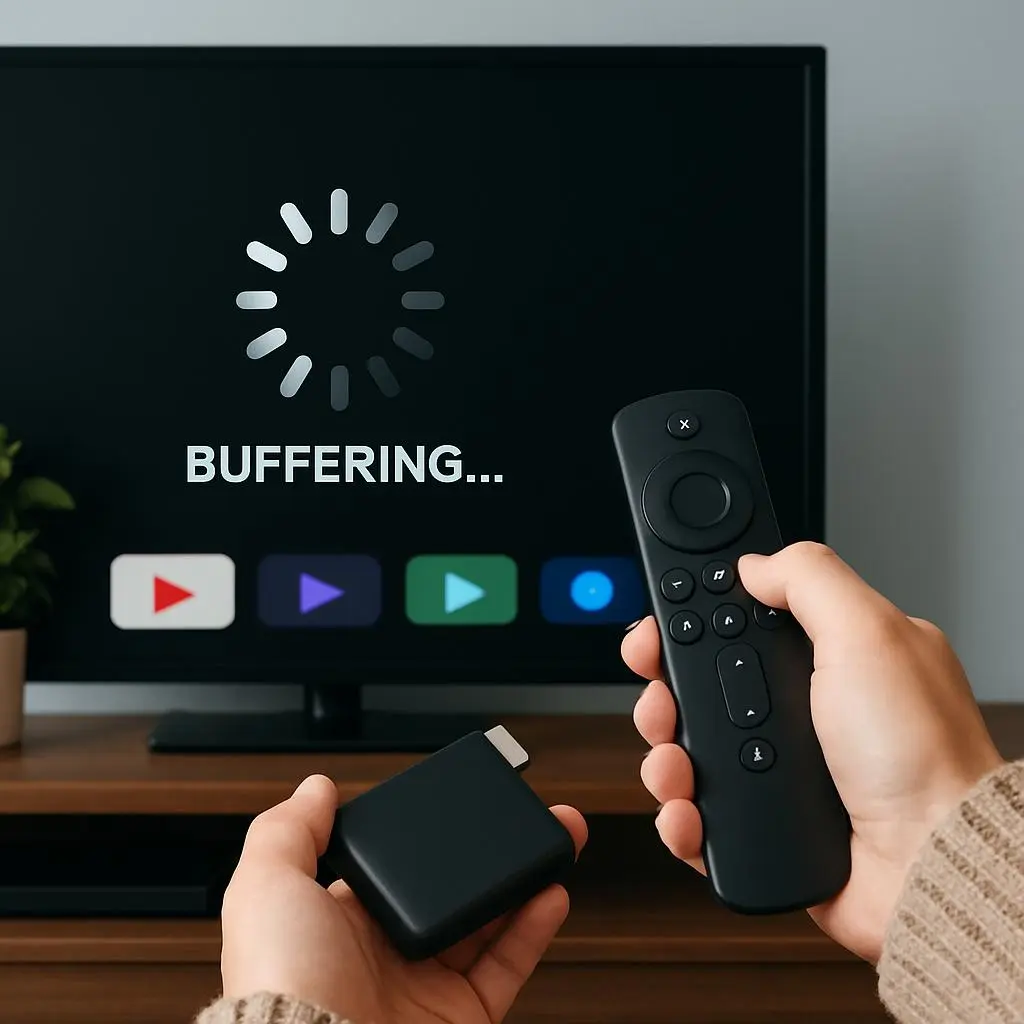
Buffering is arguably the most universal and aggravating streaming issue. It occurs when your media player empties its temporary storage cache faster than your internet connection can replenish it with upcoming video data frames. When the buffer drops to zero, the video pauses while the player waits for more data packets to arrive.
The Mechanics of Buffering
Video files are broken down into thousands of tiny data packets that travel across the internet to your device. Your streaming app tries to download a short buffer (usually 10 to 30 seconds of video ahead of where you are currently watching) to act as a safety cushion against minor fluctuations in network speed. If your connection drops below the video’s bit rate—the amount of data processed per second—the safety cushion disappears, resulting in an immediate playback freeze.
How to Fix Intermittent Freezing and Choppy Video
Clear Out Local Bandwidth Hogs
Modern smart homes are crowded with connected devices. Background cloud backups, large video game downloads, peer-to-peer file sharing, and even automatic software updates on laptops or smartphones can silently drain your network’s bandwidth.
- The Fix: Pause active downloads on all devices and toggle off Wi-Fi on secondary smartphones or tablets while trying to stream high-bitrate content.
Eliminate Wireless Congestion
Wi-Fi signals travel over shared radio frequencies that are easily disrupted by physical obstacles and competing signals. Household appliances like microwaves, baby monitors, and cordless phones operate on the same 2.4 GHz frequency band as many older routers, causing severe packet loss.
- The Fix: Move your router away from large metallic objects, thick concrete walls, and appliances. If your router is dual-band, manually connect your streaming device to the cleaner, faster 5 GHz band rather than the more crowded 2.4 GHz band.
Adjust Bitrate and Resolution Settings
Many premium streaming platforms automatically adapt video quality to match your real-time internet speeds. However, some apps aggressively attempt to stream at a higher resolution than your current environment can realistically handle, triggering constant halts.
- The Fix: Open the settings icon inside the active video player player and switch from “Auto” or “4K/1080p” down to a fixed “720p”. While this slightly reduces image sharpness, it lowers the required stream bit rate by more than 50%, allowing for smooth, uninterrupted playback on slower connections.
2. Streaming App Loading Problems and Crashes
Sometimes the issue isn’t the network connection, but rather a catastrophic failure within the application itself. Apps can refuse to load past their initial splash screens, get permanently stuck on spinning wheels, or abruptly crash back to your device’s home screen during a stream.
Root Causes of App Failure
Software architectures are continuously updated to patch vulnerabilities, improve features, and fix background bugs. When an app becomes unstable, it is usually due to a corrupted local data cache, an outdated software build, or a structural conflict with your streaming device’s operating system. Over time, temporary files called “cache data” can accumulate and overwrite critical operational paths within the app’s directory.
Step-by-Step Fixes for App Malfunctions
Force Stop and Clear App Cache
A force-stop kills all active and hanging background processes associated with an application, resetting its runtime memory without deleting your profile settings or login credentials.
- On Fire TV / Android TV: Navigate to Settings > Applications > Manage Installed Applications. Select the troublesome app, click Force Stop, and then select Clear Cache.
- On Roku: Roku devices do not feature an explicit cache-clearing button, but you can achieve a full system memory cache clearing by executing a specific remote control sequence: Press Home five times, Up once, Rewind twice, and Fast Forward twice. The device will freeze for a moment and then reboot automatically.
Perform a Clean Reinstallation
If clearing the cache fails to resolve frequent crashes, the application’s core file directory may be corrupted beyond a basic local fix.
- The Fix: Uninstall the app completely from your device. Restart your streaming hardware to ensure all residual file traces are wiped from the system’s active RAM, then download a fresh copy of the app from your official device app store.
Cross-Reference Provider Status and Server Outages
Before spending an hour tweaking your hardware settings, check if the streaming platform itself is experiencing a widespread system outage. Large-scale cloud hosting service failures can take down entire platforms simultaneously.
- The Fix: Visit independent monitoring websites like Downdetector or check the platform’s official social media channels to see if an outage is underway. If their servers are down, your only option is to wait until their engineering teams resolve the infrastructure failure. For specialized premium setups experiencing server hiccups, referencing comprehensive hubs like Blue Shark IPTV Support can provide quick clarity on systemic service updates.
3. Device Performance and Hardware Bottlenecks
A streaming setup is only as fast as its weakest link. Even with a lightning-fast fiber-optic internet connection, an aging, overworked, or unoptimized streaming stick will cause severe drops in frame rate, system lag, and unexpected app crashes.
The Limits of Streaming Stick Hardware
Budget streaming sticks and older smart TVs possess limited central processing units (CPUs), restricted graphical processors, and very small system RAM capacities. When you stream high-definition content, these microcomponents generate substantial heat while running close to 100% capacity. If a device lacks adequate cooling or becomes bogged down by too many background processes, it throttles its own processing speed to prevent permanent hardware damage.
How to Optimize Device Hardware for Smooth Playback
Prevent Thermal Throttling and Overheating
Streaming sticks plugged directly into the back of a wall-mounted TV are often trapped in pockets of stagnant, high-temperature air generated by the television screen itself.
- The Fix: Use a short HDMI extender cable to position the streaming stick away from the immediate chassis of the TV. This increases airflow around the stick’s housing, allowing heat to dissipate naturally and keeping internal chips running at maximum performance.
Free Up Internal Storage Space
Streaming devices need a small amount of free storage space to write temporary video scratch files while decoding live video. If your device’s internal drive is packed with unplayed video games or forgotten applications, your video playback performance will suffer.
- The Fix: Audit your installed apps and delete anything you haven’t used in the past month. Aim to keep at least 15% to 20% of your total onboard storage capacity completely empty.
Verify Audio and Video Format Compatibility
Trying to play an advanced multi-channel surround sound format (like Dolby Atmos) or a high-dynamic-range video format (like Dolby Vision) on a display or soundbar that doesn’t natively support those codecs forces your streaming device to transcode the data on the fly. This real-time processing can completely overwhelm basic processors.
- The Fix: Go to your streaming device’s master audio/video settings menu. Switch the audio output from “Surround Sound / Auto” to standard “Stereo / PCM”, and disable HDR options if your screen is only rated for standard 1080p SDR output.
4. Solving Complex Local Network Problems
If you’ve optimized your apps and confirmed your hardware isn’t overheating, but you’re still plagued by connection drops, your home local area network (LAN) requires optimization.
The Myth of “Good Wi-Fi”
Seeing full Wi-Fi signal bars on your TV screen does not automatically guarantee a reliable streaming connection. Those bars measure signal strength, not signal quality or packet delivery consistency. Wi-Fi connections suffer from latency spikes, packet loss, and high jitter (variable arrival times of data packets), all of which degrade real-time video streams far more than standard web browsing.
[Streaming Server] —> [Modem] —> [Router] – – – (Wi-Fi Interference) – – – x [Streaming Stick]
|
+=======(Ethernet Cable)=======> [Smooth Playback]
Advanced Networking Optimization Strategies
Upgrade to a Dedicated Ethernet Connection
The single most effective upgrade you can make to any entertainment center is running a physical copper Ethernet cable from your router directly into your streaming device. Physical wires completely bypass wireless interference, signal degradation over distance, and competing radio frequencies.
- The Fix: Connect a Cat6 Ethernet cable between your device and your router. If your device lacks an onboard LAN port (like a Fire TV Stick or Google TV Chromecast), purchase a compatible micro-USB or USB-C Ethernet adapter to unlock wired stability.
Resolve IP Address Conflicts and DNS Routing Errors
Every device on your home network requires a unique IP address assigned by your router via DHCP (Dynamic Host Configuration Protocol). If two devices accidentally claim the same address, or if your ISP’s Domain Name System (DNS) servers are slow, your streams will stall out before they can even initiate.
- The Fix: Assign a static IP address to your primary streaming box within your router’s administration panel. While you are logged into your router, change your default DNS settings from your local ISP’s servers to ultra-fast, secure public DNS alternatives, such as Google Public DNS (
8.8.8.8and8.8.4.4) or Cloudflare DNS (1.1.1.1and1.0.0.1).
Configure Quality of Service (QoS) Priority Rules
Most modern routers feature Quality of Service (QoS) software engines. This allows you to tag specific devices or data traffic types as high priority across your local network.
- The Fix: Open your router’s configuration dashboard in a desktop web browser, locate the QoS / Device Prioritization menu, and move your primary smart TV or streaming box to the top of the priority list. When multiple devices compete for bandwidth simultaneously, the router will prioritize your video stream data over background activities on other devices.
The Master Streaming Troubleshooting Workflow
When dealing with a complex issue, it is highly efficient to follow a strict diagnostic checklist. Work through this step-by-step diagnostic tree whenever you run into a persistent error code or playback failure.
[Streaming Playback Fails]
|
v
[Is App Cache Cleared?]
/ \
(No) (Yes)
/ \
[Clear Cache & Restart] [Check Internet Speed]
/ \
(< 10 Mbps) (> 10 Mbps)
/ \
[Optimize Wi-Fi / LAN] [Check ISP Throttling / VPN]
Step 1: Diagnose the Scope of the Problem
Determine if the issue is unique to a single piece of content, confined to one specific app, or affecting every device in your household.
- Action: Try playing a different show in the same app. If it works, the original video file may be temporarily broken on the platform’s servers. If it fails, open a completely different app. If the second app plays smoothly, your issue is application-specific, not network-wide.
Step 2: Perform an Insulated Local Power Cycle
Clear out stagnant memory leaks and hung tasks across your entire system chain.
- Action: Power down your streaming device. Walk over to your networking hardware and unplug both the modem and router. Leave everything completely unpowered for a full 60 seconds. Plug the modem back in first and wait for its connection lights to turn solid. Next, power on the router and wait for its Wi-Fi status lights to stabilize. Finally, turn your streaming device back on and launch your app.
Step 3: Analyze Real-Time Bandwidth and Packet Consistency
Verify if the data pipe entering your home matches your streaming needs.
- Action: Open a web browser on your streaming device (or a smartphone placed directly next to it) and run a detailed speed and network health test. Look past the headline download speed and check the Ping and Packet Loss metrics. A ping over 100 milliseconds or a packet loss rate higher than 1% indicates a degraded connection that will cause streaming issues, regardless of your overall download speed.
Step 4: Rule out ISP Throttling and CDN Congestion
During peak evening viewing hours, internet service providers sometimes intentionally slow down video traffic to prevent their regional infrastructure from overloading.
- Action: Turn on a reputable, high-speed VPN on your streaming device. A VPN encrypts your traffic data, hiding the fact that you are streaming video from your ISP. If your buffering issues suddenly disappear when the VPN is active, your ISP is actively throttling your connection. If performance worsens with a VPN, the issue points back to a misconfigured local network configuration or deep app platform server problems. For specialized guides detailing how to circumvent carrier routing bottlenecks, reading through the Blue Shark IPTV Troubleshooting documentation offers excellent, targeted solutions.
Comprehensive Data Reference Table
To help you quickly diagnose performance issues, here is a breakdown of the standard network demands, optimal resolutions, and target configurations across major hardware ecosystems:
| Streaming Resolution | Minimum Required Bandwidth | Recommended Wi-Fi Frequency | Best Connection Method | Recommended Action on Error |
|---|---|---|---|---|
| Standard Definition (SD / 480p) | 3.0 Mbps | 2.4 GHz | Wi-Fi ok, Ethernet ideal | Clear app cache, lower sound quality |
| High Definition (HD / 1080p) | 10.0 Mbps | 5.0 GHz / Dual-Band | Wi-Fi 5GHz or Ethernet | Close background apps, clear RAM |
| Ultra High Def (4K / 2160p) | 25.0 Mbps | 5.0 GHz / Wi-Fi 6 | Cat6 Dedicated Ethernet Cable | Move router closer, disable active VPNs |
| Live Sports / 60 FPS Video | 15.0 Mbps | 5.0 GHz | Cat6 Dedicated Ethernet Cable | Prioritize device via Router QoS rules |
Frequently Asked Questions (FAQ)
Why does my stream look blurry when I first start a video, then crisp up after a few minutes?
This behavior is due to a built-in streaming feature called Adaptive Bitrate Streaming (ABS). To avoid a long delay when you click play, the app immediately starts playing a low-resolution, low-bandwidth video file. While that low-quality video plays, the app builds up a secure data buffer of high-definition frames in the background. Once the buffer is stable, the player seamlessly switches to the full, crisp HD or 4K resolution.
I have 200 Mbps internet download speeds, so why am I still experiencing constant buffering?
High headline speeds do not guarantee a stable stream if your connection suffers from high packet loss or wireless interference. If your streaming stick drops just 2% of incoming data packets due to a poor Wi-Fi link, it has to repeatedly request retransmissions of those missing packets. This disrupts the continuous data flow required for video playback, causing the video to buffer even on a high-speed connection.
What are streaming error codes like “Error 001” or “Network Error 401” indicating?
- 400-Series Errors (e.g., 401, 403): These are authentication or permission errors. They mean your login token has expired, your account status is invalid, or the platform thinks you are accessing content from an unauthorized geographic region (often triggered by active VPN background tasks).
- 500-Series Errors (e.g., 500, 502, 504): These indicate internal server errors on the platform’s end. The issue lies entirely with the streaming provider’s servers, and your local equipment is functioning perfectly.
Does using a VPN cause or fix streaming buffering issues?
A VPN can both cause and fix streaming issues depending on the scenario:
- How it fixes issues: If your ISP is intentionally throttling your video traffic during peak hours, a VPN hides your activity, bypassing the throttle and resolving your buffering issues.
- How it causes issues: VPN encryption adds processing overhead and routes your data through extra intermediary servers. If you connect to a distant or overcrowded VPN server, your connection speed will drop, which can introduce buffering.
How do I know if my smart TV’s built-in apps are the issue?
Smart TV manufacturers often stop updating the operating systems on older TV models after a few years. As apps update their code, they become less compatible with older TV software, leading to slow performance and frequent crashes. To test this, plug an external streaming device (like a Fire Stick, Roku, or Apple TV) into one of the TV’s HDMI ports. If the external device streams perfectly, your TV’s internal software is outdated, and you should switch to using the external device.
Conclusion: Reclaiming a Flawless, Buffer-Free Entertainment Center
Experiencing unexpected interruptions during an immersive movie or live sporting event is always frustrating, but you don’t have to accept poor performance as the norm. Most common streaming problems aren’t caused by a single fatal flaw, but rather a combination of minor network inefficiencies, cluttered app caches, and localized hardware settings.
By working through issues methodically—clearing out background data hogs, updating software platforms, and upgrading to a stable wired network connection—you can eliminate playback stuttering and get back to smooth, high-definition viewing.
If you’ve followed this guide and are still experiencing persistent connection issues or subscription errors, your service provider’s support team can help diagnose deeper account-level problems. Take control of your home network setup today to ensure your next movie night is smooth and entirely buffer-free.