
Home Network Optimization for Streaming: The Ultimate Guide to Buffer-Free Content
Meta Description: Is your movie night ruined by constant buffering? Learn how to optimize your home network for streaming with our complete guide to router placement, Wi-Fi vs. Ethernet, DNS tweaks, and advanced troubleshooting.
Nothing ruins a cinematic climax or a live sports event quite like the dreaded spinning wheel of death. Buffering, pixelated video feeds, and random drops in connectivity are the banes of modern digital life. As streaming services transition to high-bandwidth formats like 4K Ultra HD and 8K, your home network faces unprecedented strain.
Optimizing your network isn’t just about paying your Internet Service Provider (ISP) for a faster plan. It’s about ensuring that the data entering your house actually reaches your smart TV, streaming stick, or console without hitting a bottleneck.
This comprehensive guide will walk you through every facet of home network optimization for streaming, from basic router positioning to advanced Quality of Service (QoS) configurations.
1. Understanding Internet Speed Requirements for Streaming
Before tweaking your hardware, you must understand the raw data requirements of modern streaming platforms. Different resolutions demand different bandwidth thresholds. If your baseline internet speed is insufficient, no amount of router optimization will deliver a smooth experience.
Bandwidth Thresholds by Resolution
Streaming applications use adaptive bitrate streaming, meaning they compress or decompress video quality on the fly based on your current network conditions. To maintain a stable, uncompressed stream at a specific quality tier, aim for the following dedicated speeds:
| Video Resolution | Recommended Minimum Speed per Device | Ideal Network Speed (Multi-user Household) |
| Standard Definition (SD – 480p) | 3 Mbps | 25 Mbps |
| High Definition (HD – 1080p) | 5 to 10 Mbps | 50 to 100 Mbps |
| 4K Ultra HD (2160p) | 25 to 50 Mbps | 200+ Mbps |
| 8K Ultra HD | 100+ Mbps | 500+ Mbps |
The “Household Multiplier” Effect
A common mistake when assessing internet setup for streaming is looking solely at a single device’s requirements. If a 4K stream requires 25 Mbps, a household with three simultaneous 4K streams needs at least 75 Mbps just for streaming.
Add in background smart home devices, smartphones scrolling social media, and online gaming, and a 100 Mbps plan quickly becomes congested. As a rule of thumb, multiply your household’s peak device usage by 1.5 to establish a safe bandwidth ceiling.
Checking Your Real-World Speeds
Don’t rely on the advertised speeds on your monthly internet bill. Run a diagnostic test to see what you are actually getting.
- Connect a laptop directly to your modem using an Ethernet cable (this isolates your actual internet speed from Wi-Fi interference).
- Visit a reliable speed testing utility like
Speedtest.netorFast.com. - Note your downstream speed (critical for streaming), upstream speed (critical for live broadcasting/interactivity), and ping/latency (should ideally be under 30ms).
2. The Definitive Router Placement Guide
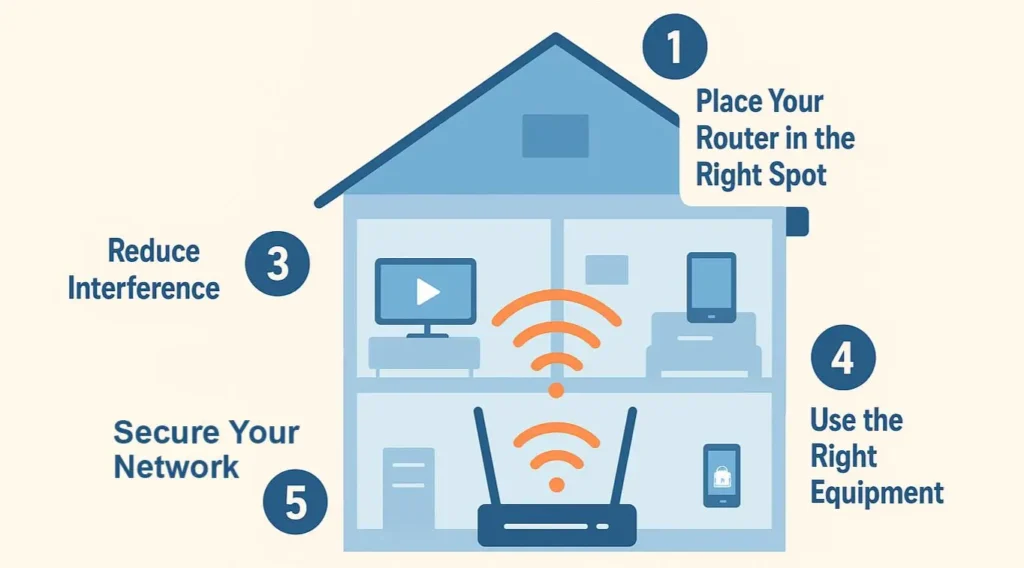
The physical location of your wireless router is the single most critical factor determining wireless streaming performance. Wi-Fi signals are high-frequency radio waves; they degrade significantly when passing through solid matter and over long distances.
The Physics of Wi-Fi Signals
Wi-Fi routers project signals outward in a spherical pattern, radiating from the antennas. If you place your router in a far corner of your home or inside a closet, more than half of that signal sphere is projected outside your house or into dead structural space.
Best Practices for Router Positioning
To achieve optimal Wi-Fi for streaming, adhere to these physical placement rules:
- Centralize the Core: Position the router in the geometric center of your living space. If your primary entertainment setup is in the living room, prioritize a central line-of-sight between the router and your main streaming devices.
- Elevate the Device: Do not leave your router on the floor. Signals travel more efficiently downward and horizontally without the immediate interference of furniture. Place it on a bookshelf, mantle, or wall mount at least 3 to 5 feet off the ground.
- Avoid Physical Obstacles: Dense building materials attenuate wireless signals rapidly. Concrete, brick, plaster, and solid wood walls are major culprits. The worst offender of all is metal—avoid placing your router near large appliances, mirrors, metal studs, or inside metal AV enclosures.
- Minimize Electronic Interference: Keep the router at least 3 feet away from other electronics that emit electromagnetic radiation. This includes microwaves, baby monitors, cordless phones, Bluetooth speakers, and even garage door openers.
3. Wi-Fi Optimization Tips for Flawless Playback
If moving your router isn’t enough, you must dive into its internal configuration. Modern routers are small computers running specialized operating systems; optimizing their software settings can dramatically improve your streaming network optimization efforts.
Dual-Band and Tri-Band Management: 2.4 GHz vs. 5 GHz
Most modern routers broadcast on at least two distinct frequency bands: 2.4 GHz and 5 GHz. Understanding when to use each is paramount.
- 2.4 GHz Band: Travels farther and penetrates walls better, but it is slow and highly congested. It maxes out at lower practical speeds and shares space with microwaves and Bluetooth. Avoid using this for 4K streaming.
- 5 GHz Band: Offers massive data capacity and much faster speeds, but has a shorter range and struggles to penetrate dense walls. Always connect your primary streaming devices to the 5 GHz band.
If your router supports “Smart Connect” (combining both bands under a single network name/SSID), consider disabling it if your streaming devices frequently drop to the slower 2.4 GHz band. Create distinct names (e.g., HomeNetwork_2.4G and HomeNetwork_5G) to force your smart TV or Apple TV to stay on the 5 GHz frequency.
Manual Channel Selection
Wi-Fi bands are divided into channels. If your neighbors’ routers are broadcasting on the exact same channel as yours, your packets will collide, resulting in packet loss and buffering.
- Use a free tool like Wi-Fi Analyzer (Android/Windows) or Wireless Diagnostics (macOS) to see which channels are most congested in your area.
- For the 2.4 GHz band, only use channels 1, 6, or 11, as these are the only non-overlapping channels.
- For the 5 GHz band, select a clear channel with minimal overlap from neighboring networks. Many modern routers handle this automatically upon rebooting, so cycling your router’s power occasionally can resolve sudden congestion issues.
Enabling Quality of Service (QoS)
Quality of Service is a feature hidden in your router’s advanced settings that allows you to prioritize specific types of internet traffic over others.
- Without QoS, a large file download on a computer can completely starve a 4K Netflix stream on your TV.
- By enabling QoS, you can tag your smart TV, Roku, or specific streaming protocols as “High Priority.” The router will then process video packets first, ensuring uninterrupted playback even if another device is heavily utilizing the local network.
4. Deep Dive: DNS Basics and Streaming Efficiency
The Domain Name System (DNS) is often called the phonebook of the internet. It translates human-readable web addresses (like netflix.com) into machine-readable IP addresses ($192.0.2.1$). While DNS doesn’t directly dictate your raw download speed, it has a profound impact on connection initialization times and content delivery routing.
How DNS Affects Content Delivery Networks (CDNs)
Major streaming platforms do not serve files from a single, centralized server. They utilize global networks of servers called Content Delivery Networks (CDNs). When you hit play on a video, your device requests the file from the closest geographic CDN node to ensure maximum speed and low latency.
By default, your router uses the DNS servers provided by your ISP. These ISP servers are often slow, poorly maintained, and can misidentify your actual location, causing the streaming service to route your video from a server hundreds of miles away instead of one down the street.
Transitioning to Third-Party DNS
Switching to a fast, reliable, third-party DNS provider can decrease loading times and improve your overall router optimization strategy. The top public DNS providers are secure, free, and incredibly fast:
- Cloudflare DNS:
1.1.1.1and1.0.0.1(Focused on absolute speed and privacy) - Google Public DNS:
8.8.8.8and8.8.4.4(Highly reliable and globally optimized) - Quad9:
9.9.9.9(Offers integrated security blocking malicious domains)
Step-by-Step DNS Configuration
To change your DNS settings globally across your entire home network:
- Log into your router’s administrative console by typing its IP address (typically
192.168.1.1or192.168.0.1) into a web browser. - Locate the WAN or Internet Settings section.
- Find the fields labeled Primary DNS and Secondary DNS.
- Change them from “Get Automatically from ISP” to manual, and enter the IP addresses of your preferred provider (e.g.,
1.1.1.1and8.8.8.8). - Save your changes and restart your router.
5. Ethernet vs. Wi-Fi: The Ultimate Showdown
When discussing high-end streaming performance, wireless technology—no matter how advanced—cannot match the raw reliability of a physical copper wire.
+————————————————————————————-+
| HOME NETWORK CORE |
| |
| +———————+ +—————+ |
| | Smart TV / 4K | <— [Ethernet] — | Router / | |
| | Streamer | | Gateway | |
| +———————+ +—————+ |
| ^ |
| | |
| [Wi-Fi] |
| | |
| v |
| +———————-+ |
| | Mobile Device | |
| +———————-+ |
+————————————————————————————-+
The Unmatched Reliability of Ethernet
Wi-Fi is a “half-duplex” medium, meaning a device cannot send and receive data at the exact same millisecond; it must take turns. Furthermore, it is subject to structural attenuation, radio frequency interference, and packet collisions.
Ethernet, conversely, is a “full-duplex” dedicated pipeline. It delivers:
- Zero Interference: Completely immune to local radio wave pollution.
- Ultra-Low Latency: Packets travel at physical speeds through copper lines, minimizing packet jitter.
- Consistent Throughput: No sudden drops in speed due to someone opening a microwave or a neighbor turning on a competing router.
Comparing Network Standards
| Connection Type | Standard / Category | Max Theoretical Speed | Practical Range | Best Used For |
| Wi-Fi 5 | 802.11ac | ~3.5 Gbps | ~115 feet | Standard streaming, smartphones |
| Wi-Fi 6 / 6E | 802.11ax | ~9.6 Gbps | ~115 feet | 4K Streaming, VR, modern tablets |
| Cat5e Cable | Ethernet | 1 Gbps | 328 feet | 4K UHD streaming boxes, gaming |
| Cat6 Cable | Ethernet | 10 Gbps | 328 feet | Future-proof home infrastructure |
How to Hardwire When Drills Aren’t an Option
If running standard Ethernet cables through your walls isn’t an option due to rental agreements or architectural limits, you can leverage alternative hardware setups:
- Powerline Adapters: These devices convert your home’s existing electrical wiring into a data network. Plug one adapter into an outlet near your router and run an Ethernet cable between them. Plug the second adapter near your TV, and pull an Ethernet line out of it.
- MoCA Adapters (Multimedia over Coax): If your home has old cable TV coaxial outlets, MoCA technology can convert those lines into high-speed multi-gigabit data networks, offering performance that vastly surpasses Wi-Fi and powerline alternatives.
6. Comprehensive Network Troubleshooting Guide
Even with an optimal setup, network degradation will occasionally happen. Knowing how to efficiently isolate and fix issues will save you hours of frustration.
The Systematic Isolation Protocol
When a stream drops or buffers continuously, follow this sequence to pinpoint the bottleneck:
[Isolate the Issue]
|
+—> Step 1: Check a different streaming app (App issue vs Network issue)
|
+—> Step 2: Check another device on the same network (Device issue vs Router issue)
|
+—> Step 3: Hardwire the device temporarily (Wi-Fi issue vs ISP issue)
Dealing with Specialized Streaming Architectures
If you are utilizing advanced or custom configuration setups—such as managing dedicated IPTV feeds or using localized media servers like Plex—the data architecture becomes significantly more sensitive to packet drops and latency issues.
For users encountering persistent protocol drops, configuration bugs, or stream authentication errors within customized IPTV setups, leveraging specialized resources can accelerate a resolution. For expert guidance on protocol configuration and dedicated platform optimization, you can consult with Blue Shark IPTV Support to resolve complex transport layer anomalies.
Advanced Diagnostics: Ping and Packet Loss
If your speed test looks fine but streaming remains choppy, you might be experiencing packet loss.
- Open the Terminal (macOS/Linux) or Command Prompt (Windows).
- Type
ping -t 8.8.8.8(Windows) orping 8.8.8.8(macOS). - Let it run for a couple of minutes, then stop it (
Ctrl + C). - Review the statistics. If your Packet Loss is anything higher than 0%, your network is dropping data along the line, forcing your streaming application to request retransmissions, leading to severe buffering.
7. Frequently Asked Questions (FAQ)
Does using a VPN affect streaming quality?
Yes. A VPN encrypts your traffic and routes it through a secondary server. This extra step introduces latency and can reduce your overall download speed by 10% to 30%. If you use a VPN for privacy, ensure you choose a provider with high-bandwidth, wireguard-optimized servers, or utilize “split-tunneling” to exempt your streaming applications from the VPN tunnel.
Why does my streaming quality drop at night?
This is typically caused by ISP Throttling or local node congestion. During peak hours (usually 7:00 PM to 11:00 PM), your entire neighborhood is online consuming data. If your ISP has not built out sufficient local infrastructure, the neighborhood node becomes overwhelmed.
Can old HDMI cables cause buffering symbols?
No. Old or damaged HDMI cables can cause audio dropouts, screen flickering, black screens, or visual artifacts, but they cannot cause your streaming application to show an on-screen “loading” or “buffering” percentage. That symbol indicates a lack of network data reaching the processing chip of the streaming device itself.
How often should I replace my home router?
As network technologies evolve and more wireless devices enter our homes, older hardware struggles to keep up. Consumer-grade wireless routers should generally be replaced every 3 to 5 years to take advantage of upgraded wireless processors, modern security patches, and newer Wi-Fi standards like Wi-Fi 6E or Wi-Fi 7.
Conclusion
Achieving a flawless, buffer-free entertainment experience requires a holistic approach to home network optimization for streaming. By selecting the proper speed tiers, strategically placing your hardware router, configuring your software channels and DNS directories properly, and choosing wired pipelines wherever possible, you strip away the bottlenecks that degrade your entertainment.
Don’t let poor configuration limit your hardware’s capabilities. Spend an afternoon auditing your network topology, adjusting your settings, and setting up your system for a rock-solid streaming environment.
Take Control of Your Network
Are you ready to eliminate the loading screen forever? Start by running an initial baseline speed test today, map out your router’s physical signal path, and shift your high-demand entertainment hardware over to a dedicated 5 GHz band or a secure physical Ethernet link. Your movie nights will thank you.
Internal Linking Opportunities for Future Content:
- Link to: “The Ultimate Guide to Choosing Between Wi-Fi 6 and Wi-Fi 7”
- Link to: “How to Securely Access Your Router’s Admin Panel: A Step-by-Step Walkthrough”
- Link to: “Configuring Plex Media Server for Remote High-Bitrate Streaming”